
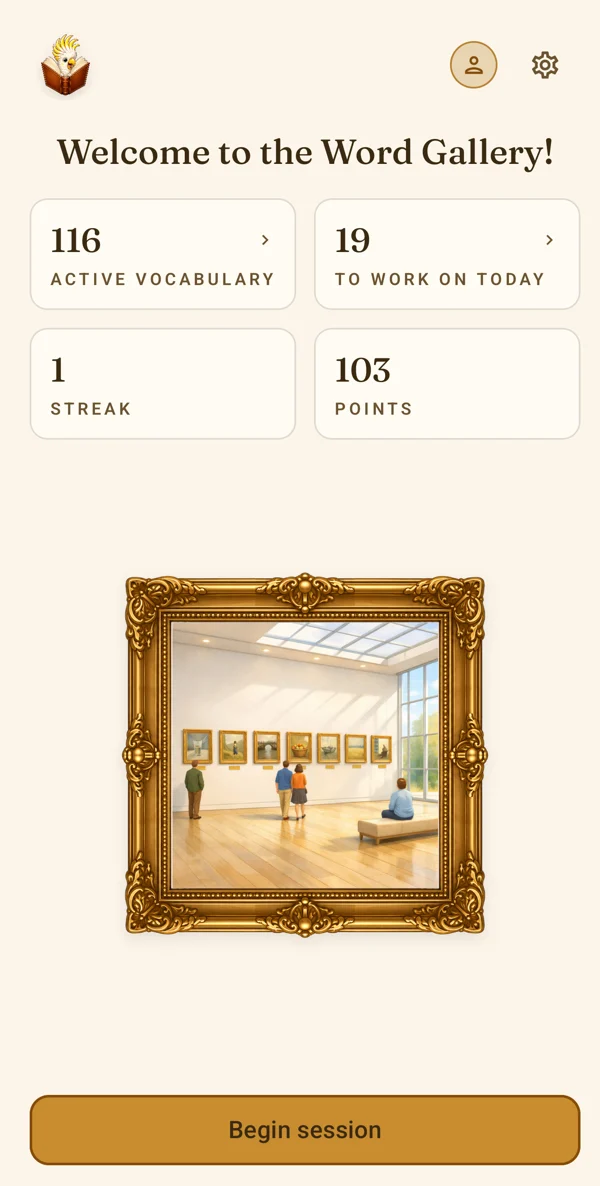
Step 1
Open the Dictionary
On the home screen, tap the cockatoo with the book, at the top left.
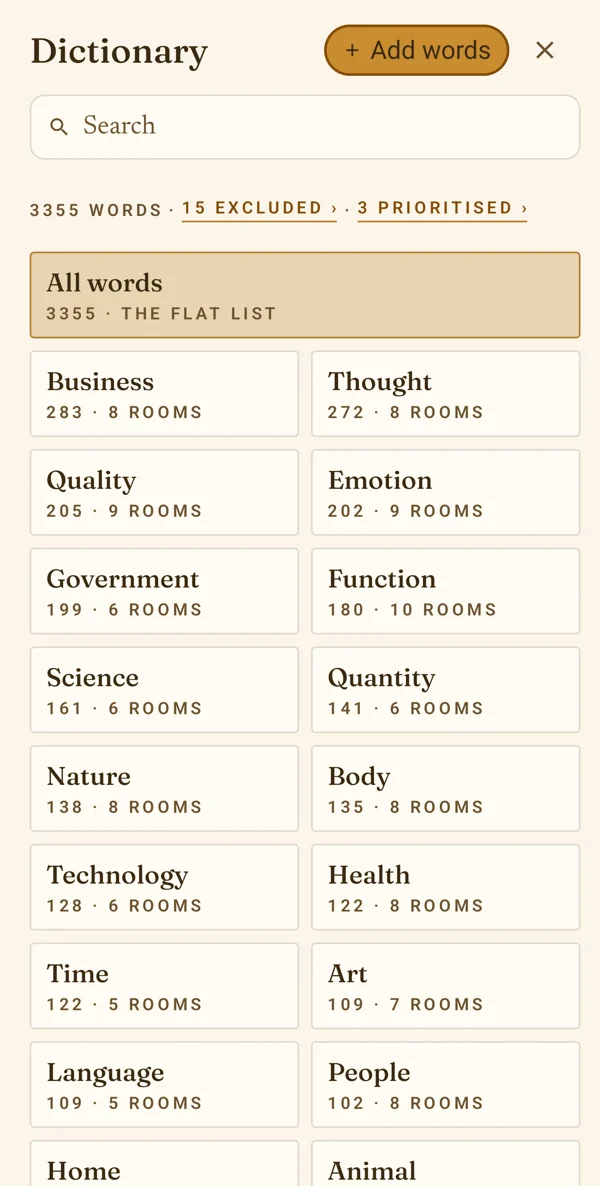
Step 2
Tap «Add words»
The button is at the top of the Dictionary. Adding words needs an account — without one, the screen offers to sign in.
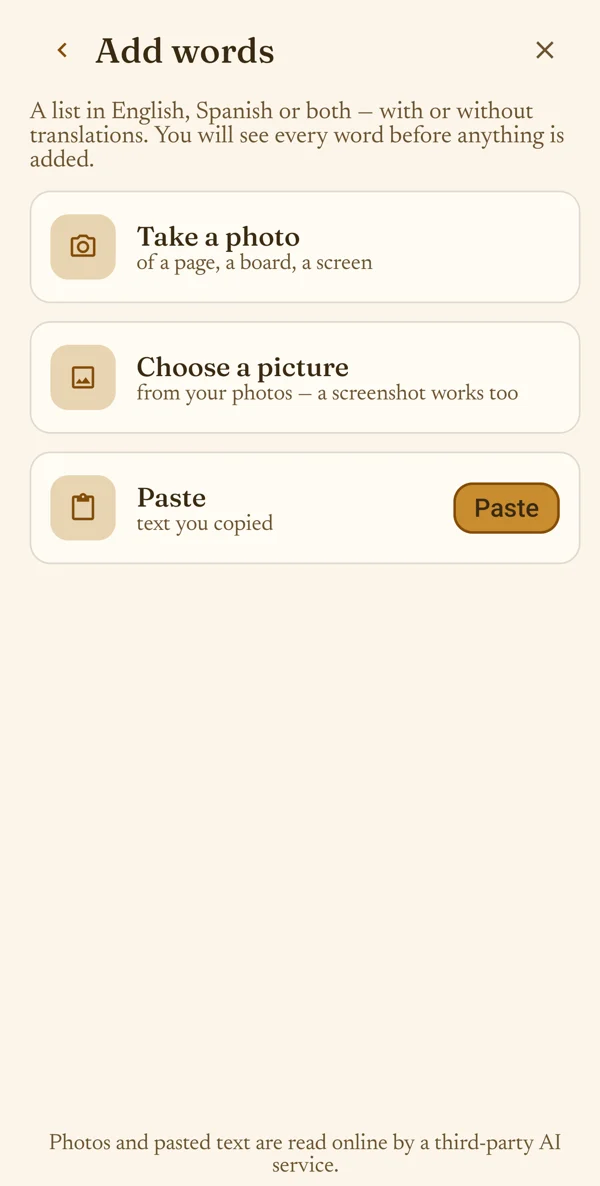
Step 3
Choose where the list comes from
Take a photo of a page, a board or a screen, choose a picture from your photos — a screenshot works too — or paste text you copied.
The list can be in your own language, in the language you learn, or both — with or without translations.
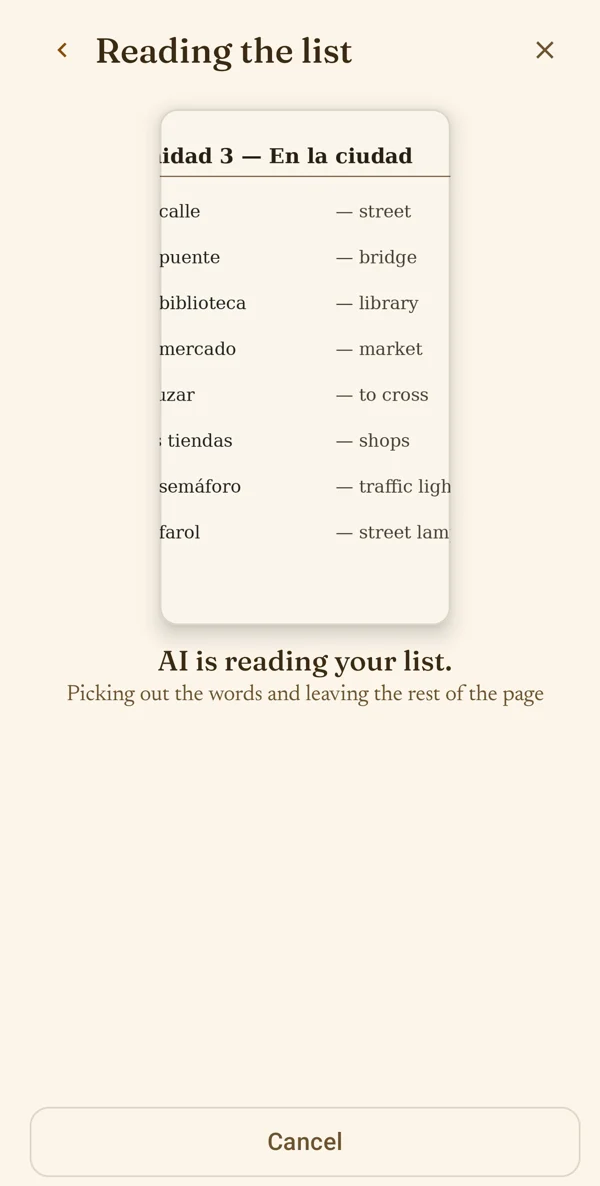
Step 4
Wait while the list is read
An AI service reads the list — but only if you agreed, the first time you added words. If you didn't, or you are offline, your phone reads it itself. You can change your answer in Settings › Privacy.
Step 5
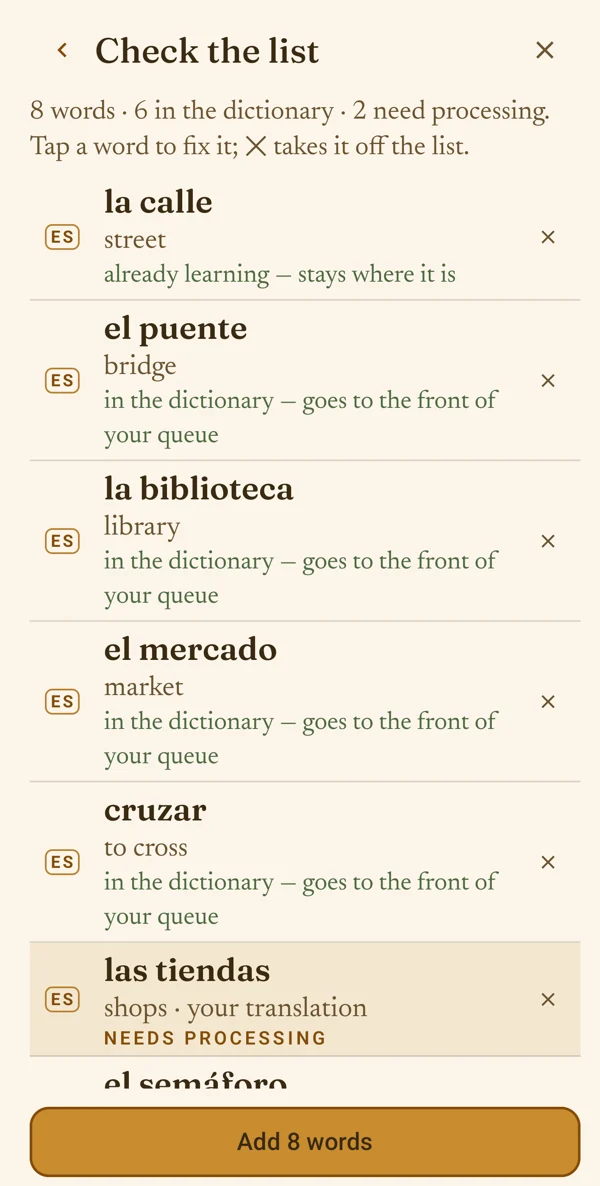
Check the list
Every word is shown with its translation and what will happen to it:
- already learning — it stays where it is;
- in the dictionary — it goes to the front of your queue;
- needs processing — the gallery does not have it yet.
Tap a word to fix it; ✕ takes it off the list.
Step 6
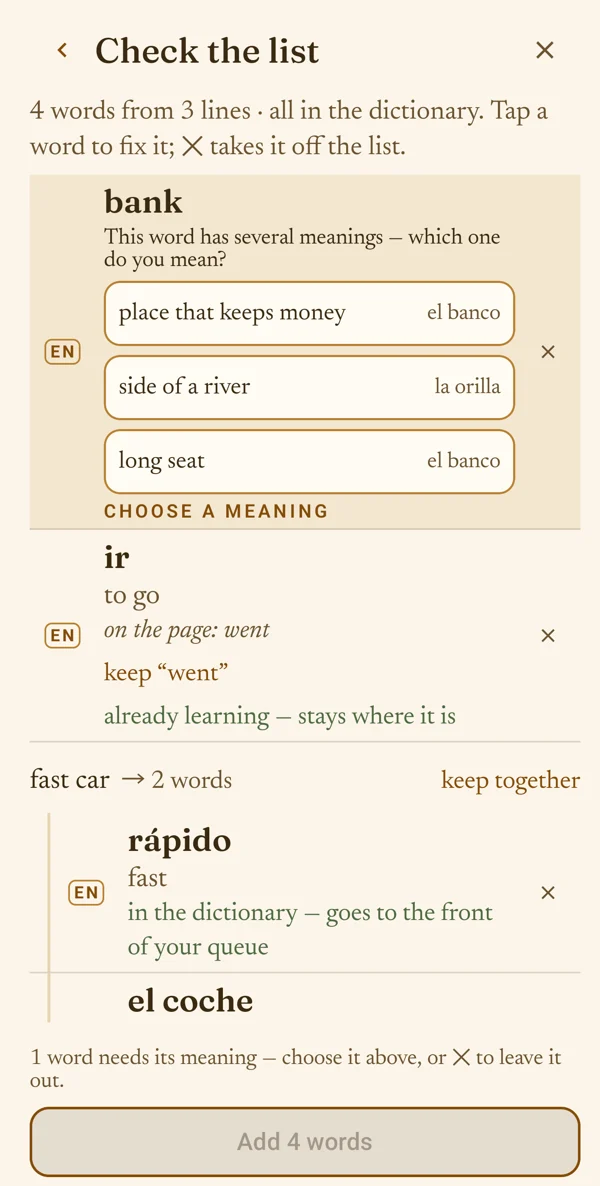
A word with several meanings
A word with no translation in your list may mean more than one thing — «bank» is a place that keeps money, the side of a river or a long seat. The app asks; tap the meaning you mean.
Until you choose, or take the word off with ✕, Add stays off.
Step 7
Your meaning — or a word the gallery has
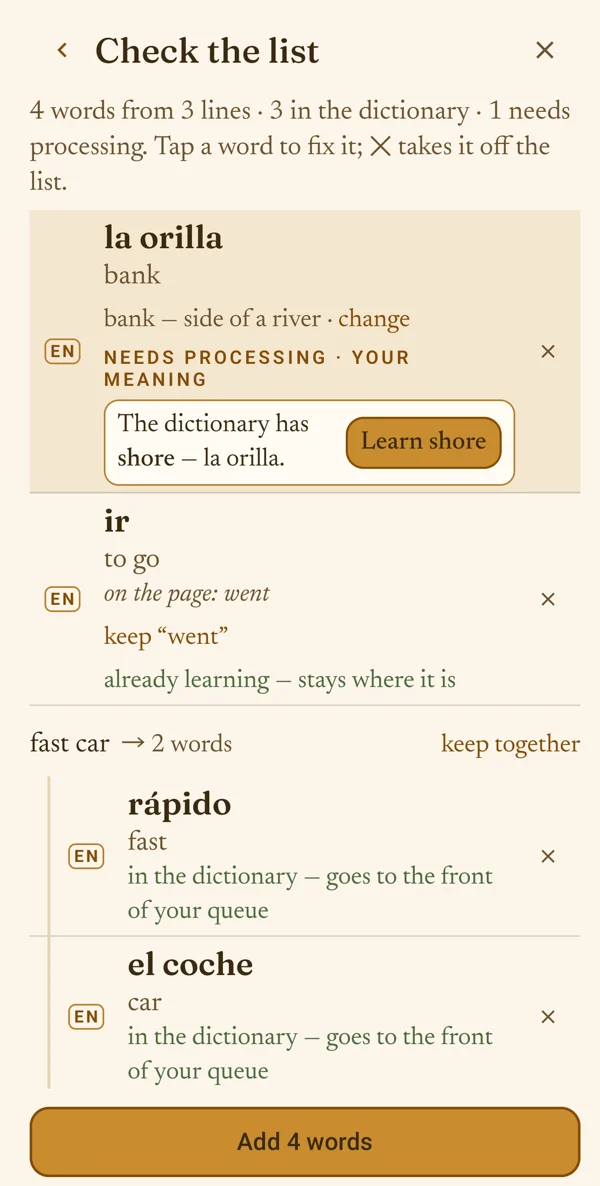
The row now shows the meaning you chose; change asks again.
If the gallery already has that meaning under another word, the app offers it — «The dictionary has shore — la orilla» — and Learn shore takes it. Otherwise your word is made for you, with your meaning.
Step 8
Forms and phrases
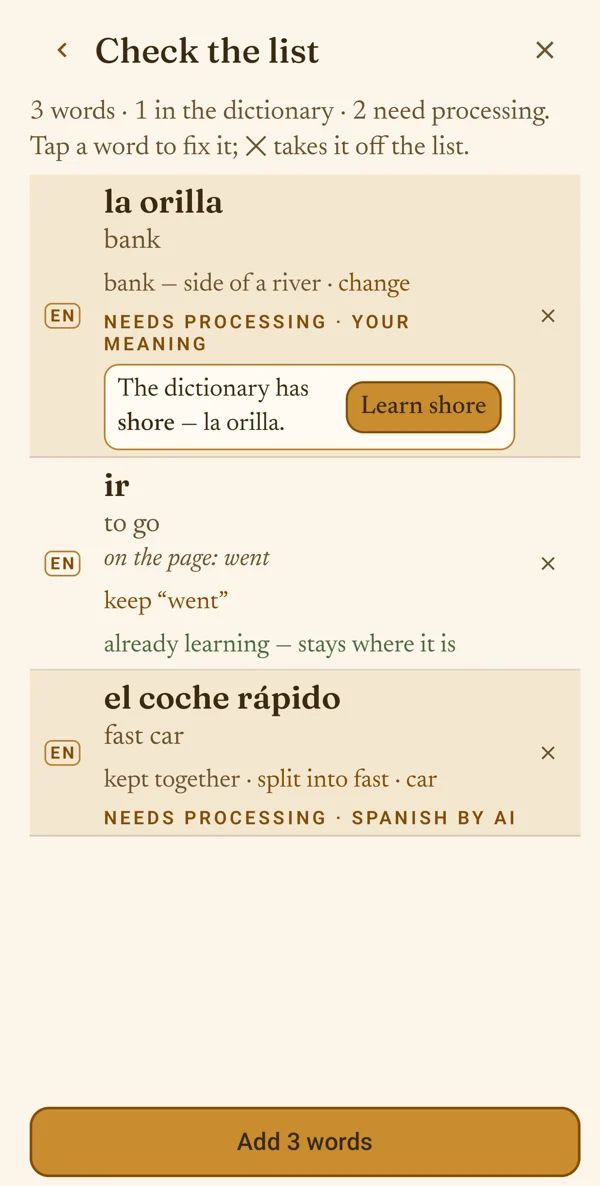
A form becomes its dictionary word. «went» is shown as ir — to go, with «on the page: went» under it; keep “went” keeps the word as it was written.
A phrase is split into its words. «fast car → 2 words» gives you «fast» and «car»; keep together learns the phrase as one, and split into fast · car splits it again.
Step 9
Add the words
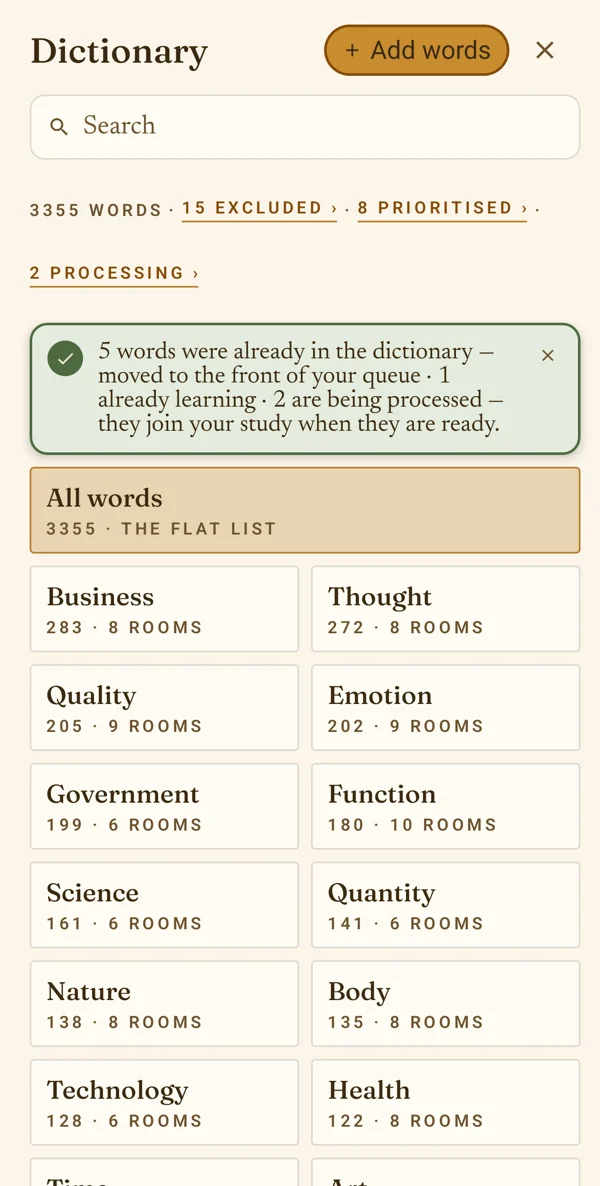
Tap Add N words. The Dictionary opens with a note on what happened: which words moved to the front of your queue, which you were already learning and which are being made.
The words you added come first in your next lessons, in the list's order.
Step 10
Words being made
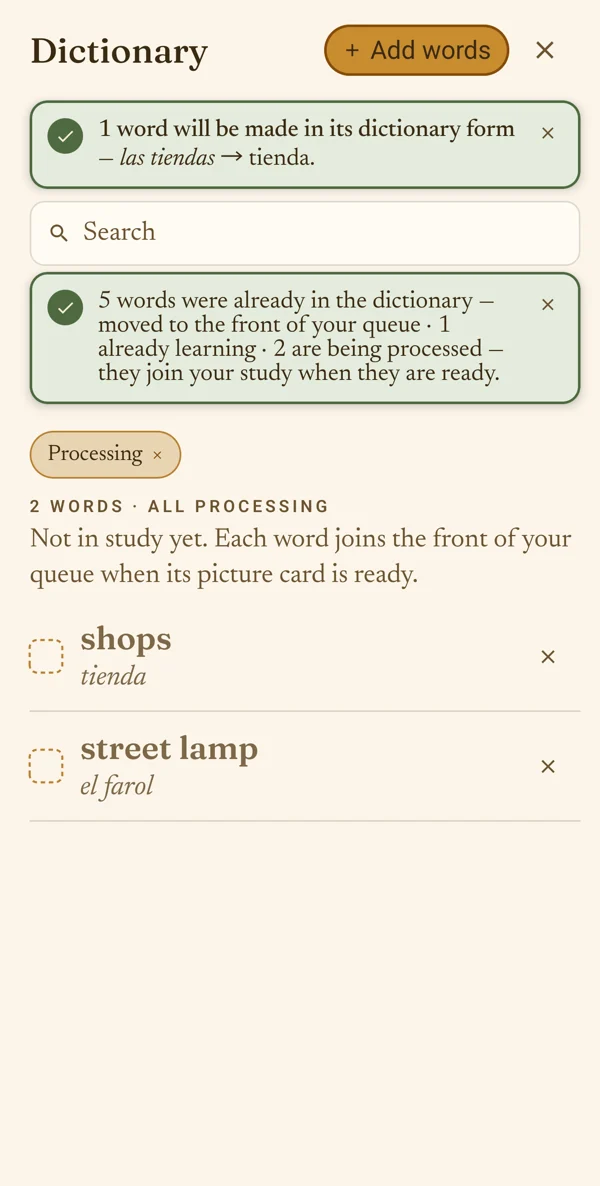
A word the gallery does not have yet is made for you, with its own painting. Processing at the top of the Dictionary shows these words.
They are not in your lessons yet: each joins the front of your queue when its picture card is ready. If a word on your list was a form, it is made in its dictionary form, and the note says so.
Adding your own words
Learn the words from your textbook, a handout or a screen: photograph the list or paste it, check it, add it.

Your first painting is waiting.
A few new words a day, out loud. Your first 50 words are free.
Coming soon to the App Store and Google Play