
Step 1
Open the Dictionary
On the home screen, tap the cockatoo with the book, at the top left.
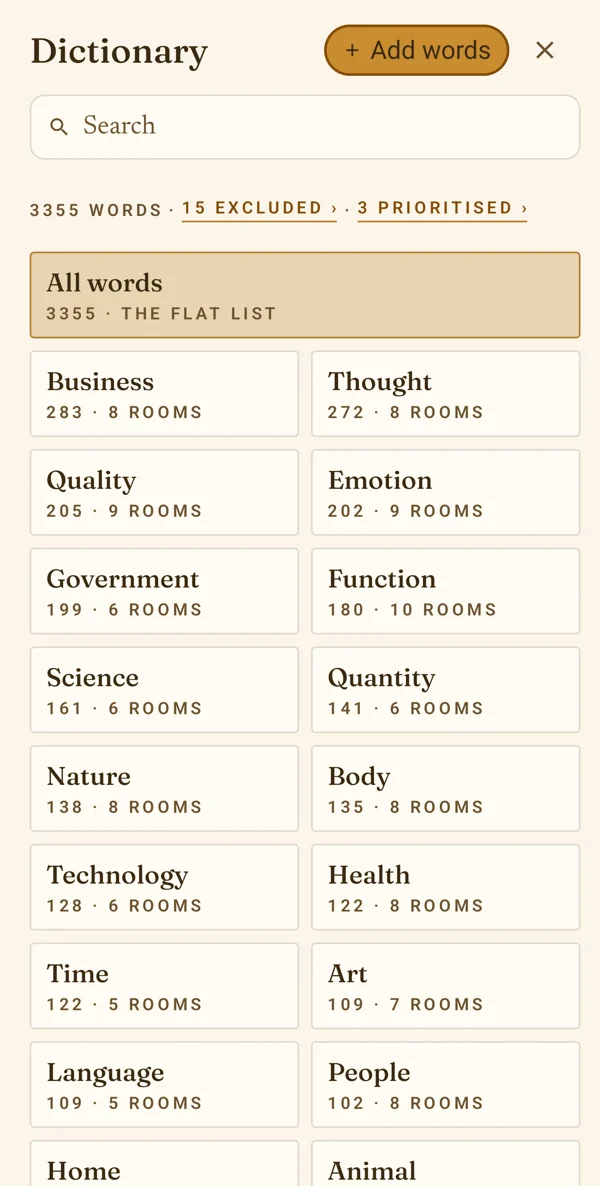
The line at the top counts the words, the words you removed and the words you prioritised — and, after you add your own, the words being made. Tap any of these to see those words.
Step 2
Walk through the gallery
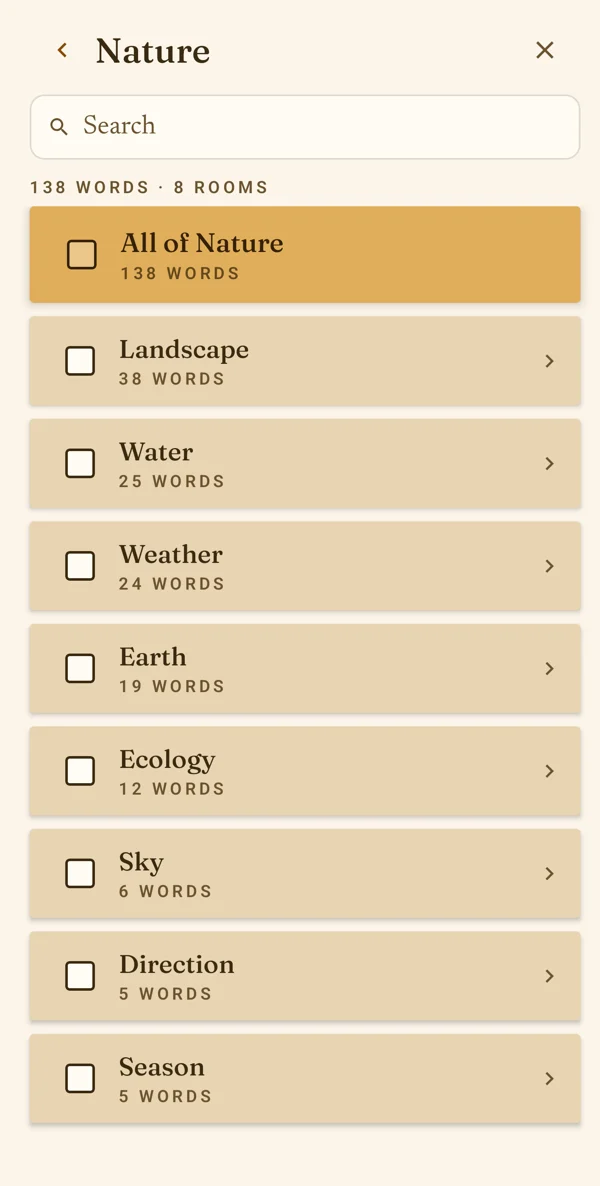
All words is the whole list. Each theme opens into its rooms — Nature into Landscape, Water, Weather and more — and each room into its words. The arrow at the top goes back one level.
Step 3
Or search
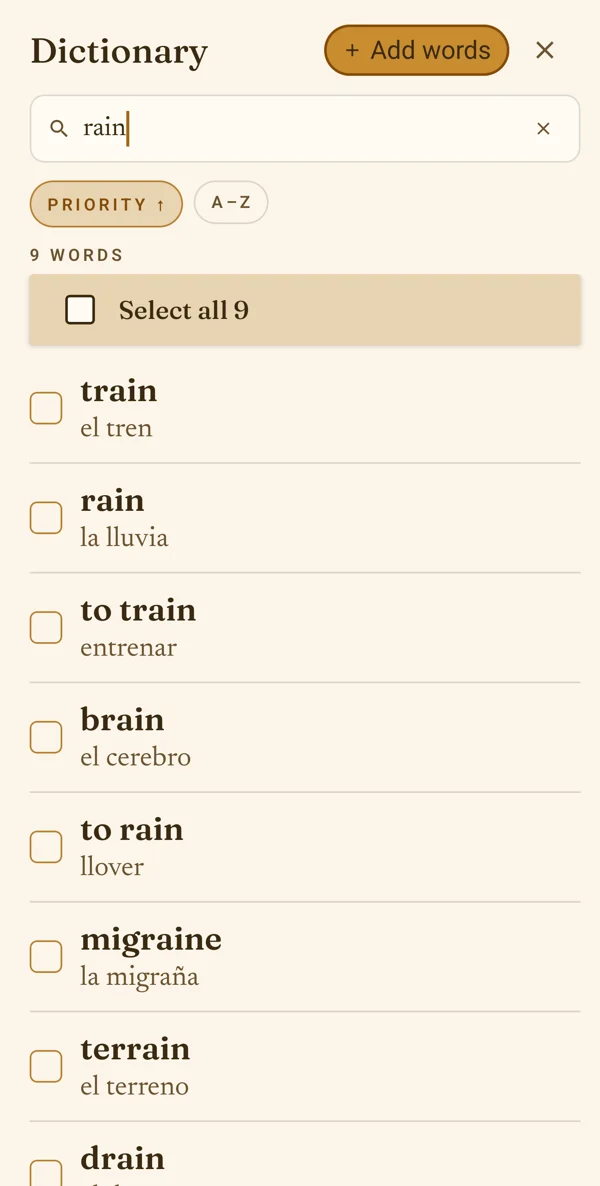
Type in the search box to find a word anywhere in the gallery. Priority and A–Z change the order; tap the same one again to turn it round.
Step 4
Select words
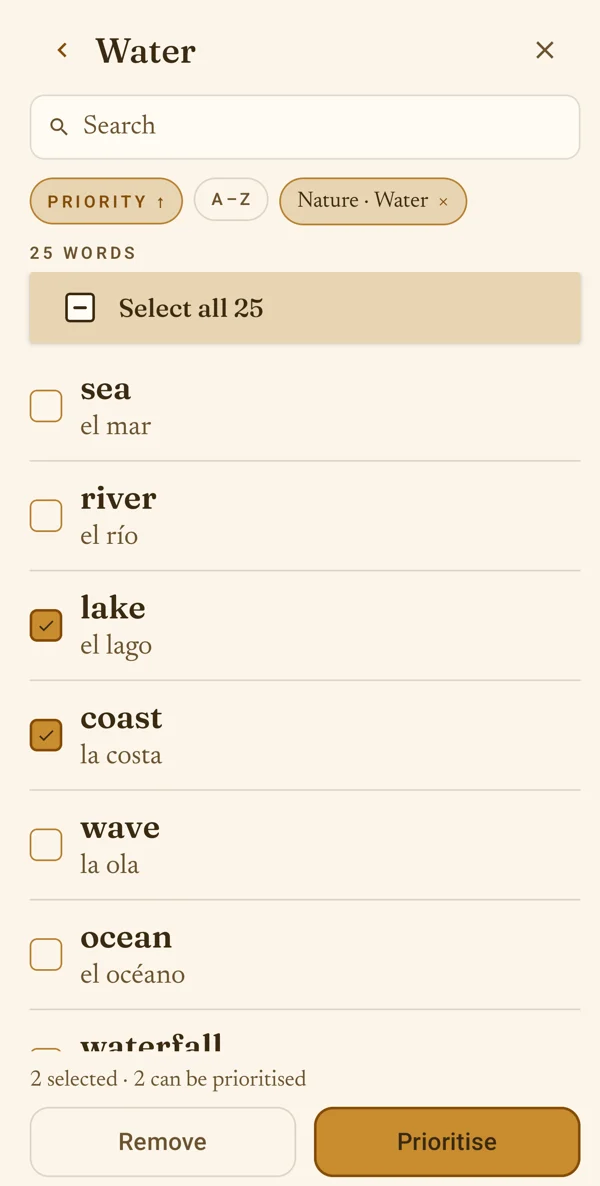
Tick the words you want. Select all ticks every word on the screen, and a room's box ticks the whole room. The line above the buttons says what the next tap will do.
Step 5
Prioritise or remove
Prioritise — the words become your next new words. A word you have already started keeps its place, and the line above the buttons names it.
Remove — the words leave your lessons, also words you have already learned.
Step 6
Restore
Tap Excluded or Prioritised at the top of the Dictionary to see those words; ↺ puts a word back in its own place. Words you marked «I know it» are among the removed ones.
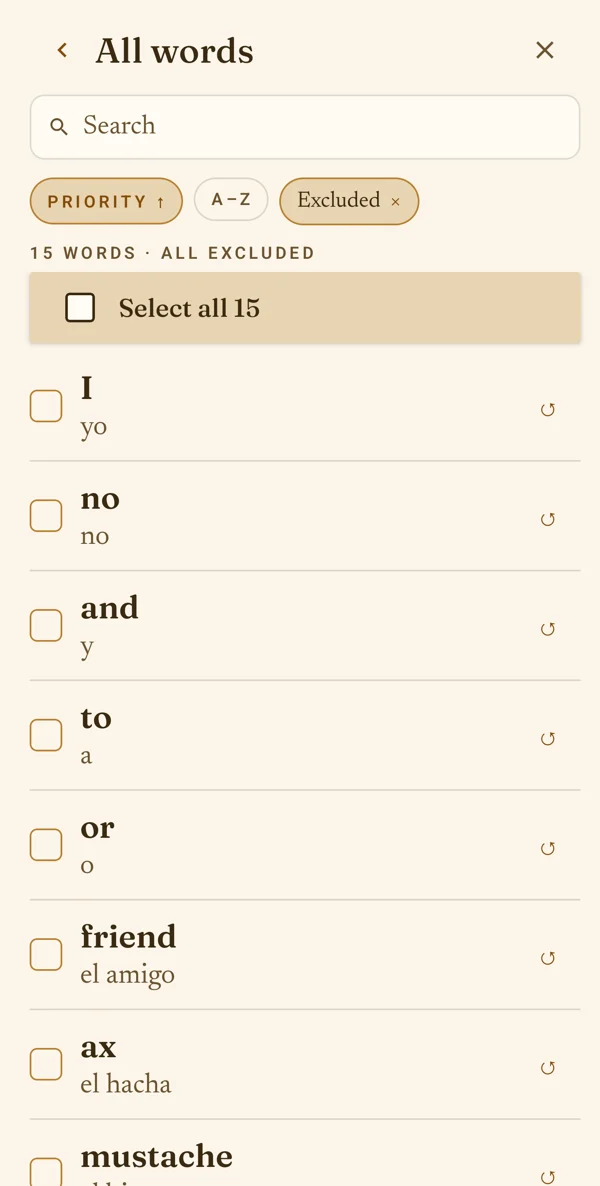

Your dictionary: find, prioritise, remove, restore
Every word of the gallery is in your Dictionary. Here you choose which words come next, and which never come at all.

Your first painting is waiting.
A few new words a day, out loud. Your first 50 words are free.
Coming soon to the App Store and Google Play